

How to Boost FPS on Android: Reduce Lag and Prevent Overheating
Most Android performance problems are not caused by the phone being too old or weak. They are caused by background apps eating RAM, graphics settings being too high, and bad habits that add up over time.
This guide covers every real fix and simple step you can do right now to make any Android game run smoother.
Why Android Games Lag
Your phone handles many things at once while you game. It syncs apps, runs notifications, keeps background processes alive, and manages temperature all at the same time as rendering the game.
When any of these take too many resources, you get lag, frame drops, stuttering, or crashes.
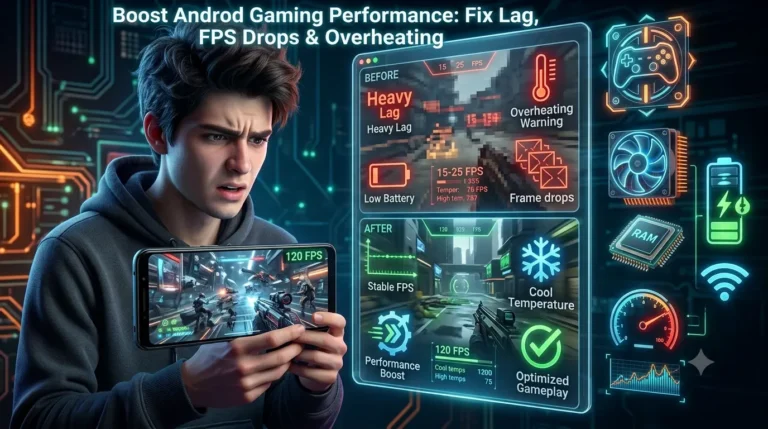
The most common causes:
| Cause | What Happens |
| Background apps running | RAM and CPU are split between game and other apps |
| Graphics set too high | GPU cannot keep up — FPS drops |
| Low storage space | System slows down with less than 1 GB free |
| Device overheating | Phone reduces performance to cool down (throttling) |
| Corrupted cache | Old files cause stuttering and slow loading |
| Background sync active | Apps downloading data while you play |
| Outdated Android OS | Compatibility issues with newer game files |
Fix these and most lag problems disappear.
Tip 1: Close Background Apps Before You Play
This is the single biggest improvement most players can make right now.
Before launching any game, swipe away every app in your recent apps list. This frees RAM immediately and gives the game full access to your device resources.
Apps like browsers, YouTube, Instagram, and WhatsApp keep running in the background even when you are not using them. On a phone with 4 GB RAM, three or four open apps can leave the game with less than 1 GB to work with.
How to do it: Press the recent apps button → swipe away every open app → then launch your game.
Tip 2: Lower In-Game Graphics Settings
This is the fastest way to boost FPS on any device. Most players leave graphics on High or Ultra and wonder why the game lags.
Go into the game settings and reduce:
- Graphics quality (High → Medium or Low)
- Shadow detail (turn off if possible)
- Anti-aliasing (turn off)
- Screen resolution (one step lower than max)
- Visual effects (reduce or disable)
For Summertime Saga and similar games, medium graphics look nearly identical to high — but the FPS improvement is very noticeable, especially on mid-range devices.
| Device Type | Recommended Graphics |
| High-end (2022 or newer) | High — all effects on |
| Mid-range | Medium — shadows off |
| Older or budget device | Low — disable animations |
Tip 3: Enable Game Mode or Game Booster
Most Android phones made after 2019 have a built-in Game Mode or Game Booster. It is one of the most useful features for gaming and most players never turn it on.
What it does:
- Blocks notifications during gameplay
- Limits background app activity
- Prioritizes CPU and GPU power for the game
- Prevents calls from interrupting sessions
Where to find it:
- Samsung: Game Launcher app (pre-installed)
- Xiaomi/MIUI: Game Turbo in Settings
- OnePlus: Gaming Mode in Settings → Utilities
- Other brands: Search “Game Mode” in Settings
If your phone does not have a built-in option, airplane mode is a simple alternative — it stops all background network activity and often improves performance noticeably.
Tip 4: Free Up Storage Space
Low storage affects more than just installation. When your phone has less than 1 GB free, the entire system slows down — including games.
Android constantly writes temporary files during gameplay. If there is no space for them, the game stutters or crashes.
What to delete:
- Old videos and photos (move to Google Photos or Google Drive)
- Apps you have not opened in months
- Large downloads sitting in your Downloads folder
- WhatsApp media (these pile up fast)
Keep at least 2 GB free at all times for smooth performance.
Quick check: Settings → Storage → see what is taking the most space → delete or move it.
Tip 5: Restart Your Device Before Long Sessions
A fresh restart clears RAM, stops stuck background processes, and resets system performance. It takes 30 seconds and makes a real difference—especially if you have not restarted in several days.
If you game every day, restart your phone once every two days. This prevents RAM buildup from slowing down your sessions over time.
Tip 6: Turn Off Background Sync and Auto-Updates
Apps syncing in the background while you play are a hidden performance killer. Google Drive backing up photos, WhatsApp downloading media, and Play Store updating apps all compete with your game for bandwidth and CPU.
How to reduce background sync:
- Settings → Accounts → Auto-sync → turn it off while gaming
- Play Store → Settings → Auto-update apps → set to Wi-Fi only or off
- Settings → Battery → Background App Restrictions → limit heavy apps
You can turn sync back on after your gaming session.
Tip 7: Clear Game Cache Regularly
Over time, games build up cache files. When these files become corrupted or too large, they cause stuttering, slow loading between screens, and random crashes.
Clearing cache does not delete your game progress or save files. It only removes temporary data.
How to clear cache: Settings → Apps → select the game → Storage → Clear Cache
Do this once a month for any game you play regularly. If a game suddenly starts running worse than before, clearing cache is usually the first fix to try.
Tip 8: Prevent Overheating
Heat is one of the biggest FPS killers on Android. When your phone gets too hot, it automatically reduces CPU and GPU speed to protect the hardware. This is called thermal throttling — and it can cut your FPS in half. Signs your phone is throttling:
- FPS suddenly drops mid-session
- Phone feels hot to the touch
- Battery drains much faster than normal
How to prevent overheating:
- Do not play while charging — charging generates heat on its own
- Remove thick phone cases during long sessions — they trap heat
- Play in a cooler room if possible
- Take a 5 to 10 minute break every hour
- Do not block the phone’s vents or back panel
If your phone overheats regularly, consider a cooling fan clip — they attach to the phone and reduce temperature significantly during gaming sessions.
Tip 9: Use a Stable Internet Connection
For online games, lag often has nothing to do with your phone’s performance. It is network latency — the delay between your device and the game server.
If you experience lag only in online matches but the game runs smoothly otherwise, your connection is the problem.
Fixes:
- Move closer to your Wi-Fi router
- Switch from 2.4 GHz to 5 GHz Wi-Fi band if your router supports it
- Avoid gaming while others are streaming video on the same network
- Turn off background downloads before starting a session
- If Wi-Fi is weak, a strong mobile data connection can sometimes be more stable
Tip 10: Keep Android Updated
System updates improve hardware compatibility, fix performance bugs, and make apps run more efficiently. Running an outdated Android version can cause games to lag or crash, especially newer game releases that are optimized for recent OS versions.
Settings → Software Update → check for updates → install if available.
This is especially important for large APK games. Newer game files are built for newer Android versions, and running them on outdated software causes unexpected performance issues.
Quick Settings to Change Right Now
These changes take less than 5 minutes total and will improve performance immediately:
| Setting | Where to Find It | What to Change |
| Graphics quality | In-game settings | Reduce to Medium or Low |
| Background sync | Settings → Accounts | Turn off while gaming |
| Game Mode | Settings or Game Launcher | Turn on |
| Auto-update apps | Play Store → Settings | Set to manual or Wi-Fi only |
| Battery optimization | Settings → Battery | Disable for your game |
| Developer Options (Animation) | Settings → Developer Options | Set to 0.5x or off |
My Experience
After testing performance fixes on a Redmi Note 11, Samsung A52, and an older Xiaomi Mi 8, the biggest improvements came from two things: closing background apps and lowering graphics.
On the Redmi Note 11, closing all background apps before launching gave a noticeable FPS boost immediately. On the Mi 8, dropping from High to Low graphics turned a slideshow into a playable experience.
Overheating was the trickiest issue. Removing the phone case and taking breaks every 45 minutes kept the temperature stable and stopped the FPS drops that used to happen after 30 minutes of play.
The pre-game routine above closes apps, enables Game Mode, check storage takes 90 seconds, and makes every session more consistent across all three devices.
Frequently Asked Questions
Conclusion
Better Android gaming performance does not require a new phone. In most cases, closing background apps, lowering graphics, enabling Game Mode, keeping storage free, and preventing overheating are enough to fix lag completely.
Start with the quick settings table and the pre-game routine. Apply whichever tips match your device type. For most players, these changes alone will make games noticeably smoother within minutes.